There’s one question we get in nearly every first meeting. It usually comes right after we’ve finished banging on about load times and Core Web Vitals: “Sounds great. But can my team still edit it?”
Fair question. A lightning-fast website your marketing team can’t touch is just a very quick brochure. If every typo fix means emailing a developer and waiting three days, you haven’t bought a website. You’ve bought a bottleneck.
So here’s the straight answer for marketers, content leads and business owners who’ve been told a static site is “too technical”. We build on Hugo and use CloudCannon CMS for editing. This is what editing a Hugo site in CloudCannon actually looks like: what you can do yourself, what still needs a developer (and why that’s a good thing), and how it compares with the WordPress dashboard you might be used to.
First, why this is even a question
A static site is pre-built. Instead of a database stitching each page together every time someone visits, Hugo turns your content files into finished HTML ahead of time. That’s where the speed and security come from. We unpacked the engineering side in why static site generation is the foundation for the AI era.
The catch was always editing. Those content files are Markdown and YAML sitting in a Git repository, which is fine for developers and a nightmare for everyone else.
CloudCannon fixes that. It’s a Git-backed CMS: your site’s source files stay in your own Git repository, and CloudCannon puts a proper editing interface on top of them.1 Your team gets buttons, previews and a Save button. Your content stays in plain files you own, not locked inside someone’s proprietary database.
The four ways to edit in CloudCannon
CloudCannon has four editing interfaces, and which one opens depends on the file and how your developer has set things up. In practice, marketers live in the first three.
The Visual Editor: click the page, change the words
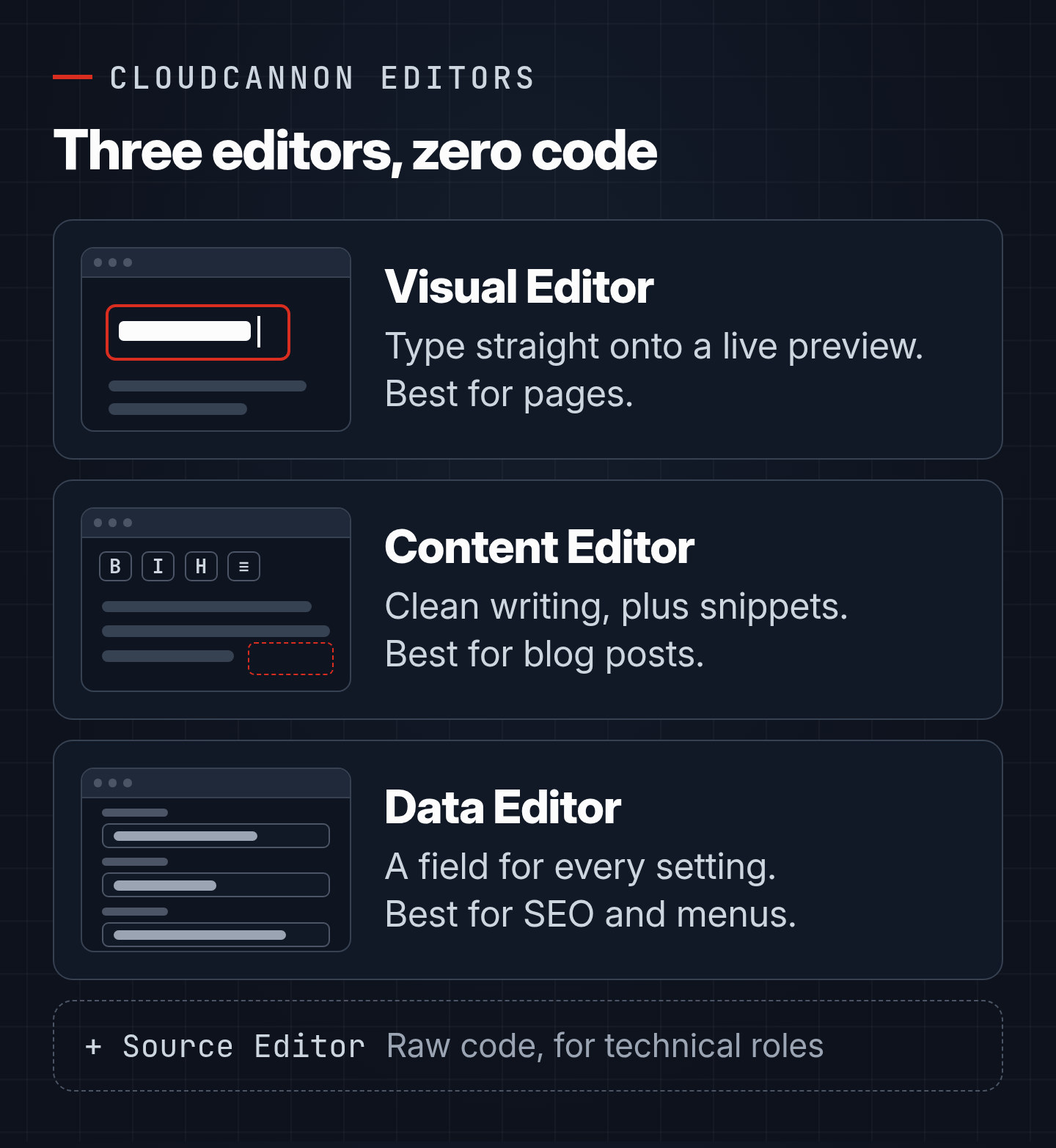
This is the one that wins people over. You edit directly on a live, interactive preview of your page, seeing exactly what visitors will see. You can even click links to move between pages, just like on the real site.
The editable parts are marked with yellow boxes called editable regions, which turn green when you hover over or click them. Click into one and:
- Text: type straight onto the page. Rich text areas give you a formatting toolbar (bold, italics, headings, lists).
- Images: a panel opens where you can swap the image and update its alt text and title.
- Lists: you get tools to add, remove and reorder items.
No more editing in a back-end form, hitting preview and hoping.
The Content Editor: Google Docs for your blog
For long-form writing like blog posts, articles and guides, the Content Editor is a clean, distraction-free rich text editor with a WYSIWYG toolbar. If you can use Google Docs or Word, you can use this.
It also handles snippets: pre-built content blocks you drop in with a click. On our own site, blog editors can drop in alerts, accordions and video embeds without touching code.
The Data Editor: the boring stuff that matters
Every page has information that isn’t in the body copy: the title, the publish date, the featured image, the SEO description Google shows in search results. That’s front matter. The Data Editor gives every one of those values its own input field, and the same interface sits in the sidebar of the Visual and Content Editors.
It’s also where structured data files live, like navigation menus, staff profiles and product details. Want to add a menu item or update a team bio? Data Editor.
The Source Editor: break glass in case of emergency
There’s also an in-browser code editor for raw file edits. It’s only available to people with Technical Editor permissions or higher. Most marketing teams never need it, and frankly, that’s the point.
Page building with components (the bit marketers love)
Blog posts are one thing. Landing pages are where teams usually feel boxed in, so this is where CloudCannon’s component system earns its keep.
We build your site from a library of components: heroes, feature grids, CTAs, FAQs, testimonials. These are set up in CloudCannon’s open-source Bookshop framework. In the Visual Editor you click a component to open a small panel. From there you can edit its content with the pencil, reorder it with the arrows, delete it, or add a new one with the plus, and the page updates live in front of you.2
Think of it as Lego, but every brick was designed for your brand. Your team can build a new campaign page on a Friday afternoon without a developer, and nobody can accidentally wreck the design system with a rogue font or a 4 MB hero image. Freedom inside guardrails. That’s the trade.
Previews, drafts and publishing without sweating
Nothing’s live until you hit Save
Changes aren’t saved until you click Save, which opens a review of everything you’ve changed. Made a mess? Use your browser’s undo, or Discard unsaved changes from the file menu to roll the file back to its last saved state. CloudCannon also shows the avatars of anyone else who has the file open and highlights who’s actively editing, so you’re not overwriting a colleague’s work.
Drafts actually stay drafts
Hugo has a draft setting. A page marked as a draft isn’t rendered unless the build is explicitly told to include drafts.3 On sites we build, that’s a simple on/off switch in the sidebar. Write it, leave it as a draft, and get it signed off before flipping the switch.
Staging, approvals and “who pushed that live?”
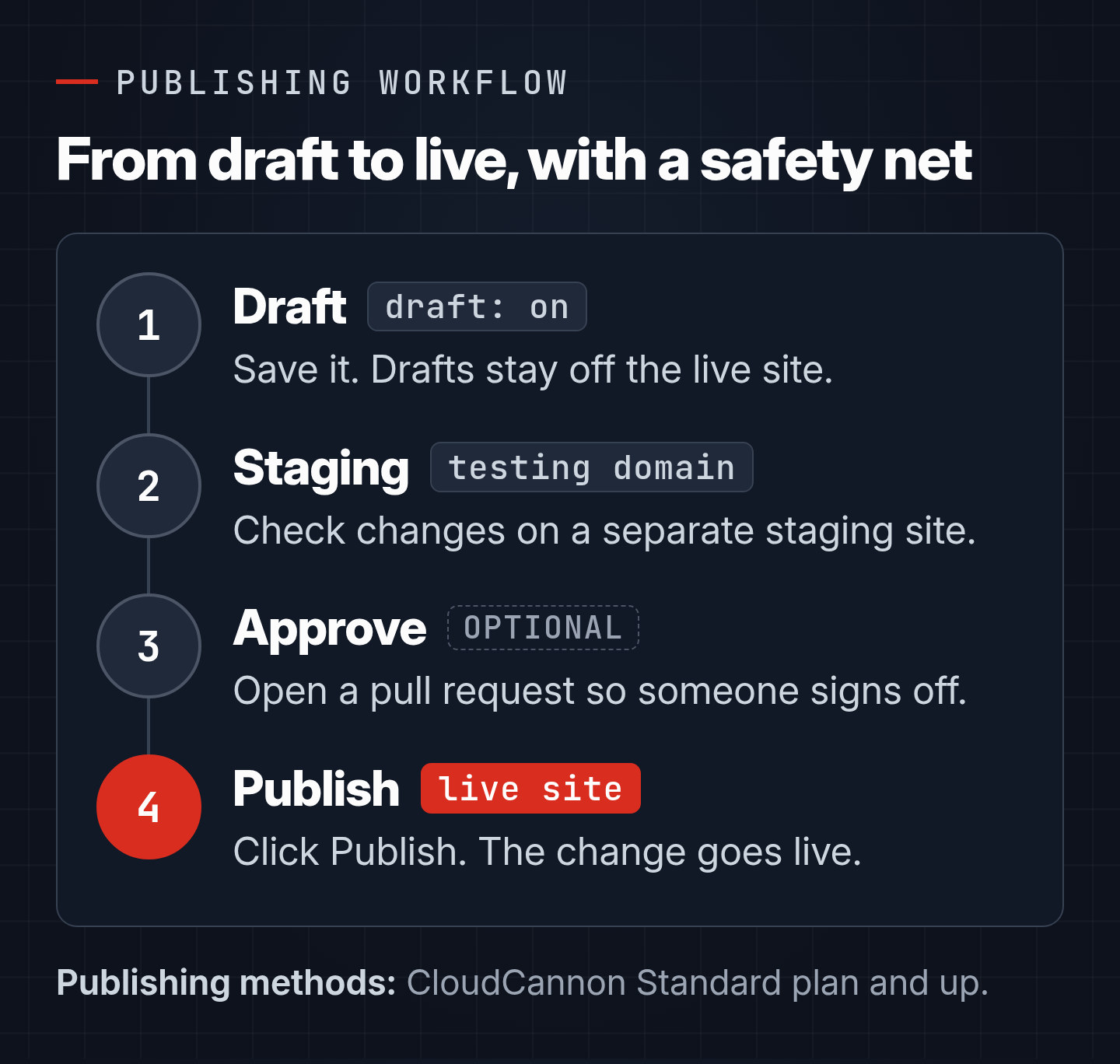
For teams that need sign-off, CloudCannon can run a staging site. Edits are made and previewed on a separate testing domain, then published to the live site with a Publish button. You choose the publish mode: merge straight through, or open a pull request so someone approves the change before it goes live.
Publishing methods are available from CloudCannon’s Standard plan. Site branching and automatic deploy previews need the Team or Enterprise plan.4 We’ll tell you honestly whether you need them. A two-person marketing team probably doesn’t.
Who can do what: roles and permissions
CloudCannon comes with ready-made permission groups.
- Editors: the lowest level of access, built for people who want to edit content “without worrying about the technical aspects”. They can edit, add and delete files, publish (via pull request or direct merge), upload to connected asset libraries and manage form responses in site inboxes.
- Technical Editors: everything Editors can do, plus the Source Editor, triggering builds, viewing logs and analytics, and creating backups.
- Developers: site settings, domains, team members and projects.
- Owners: everything, including billing.
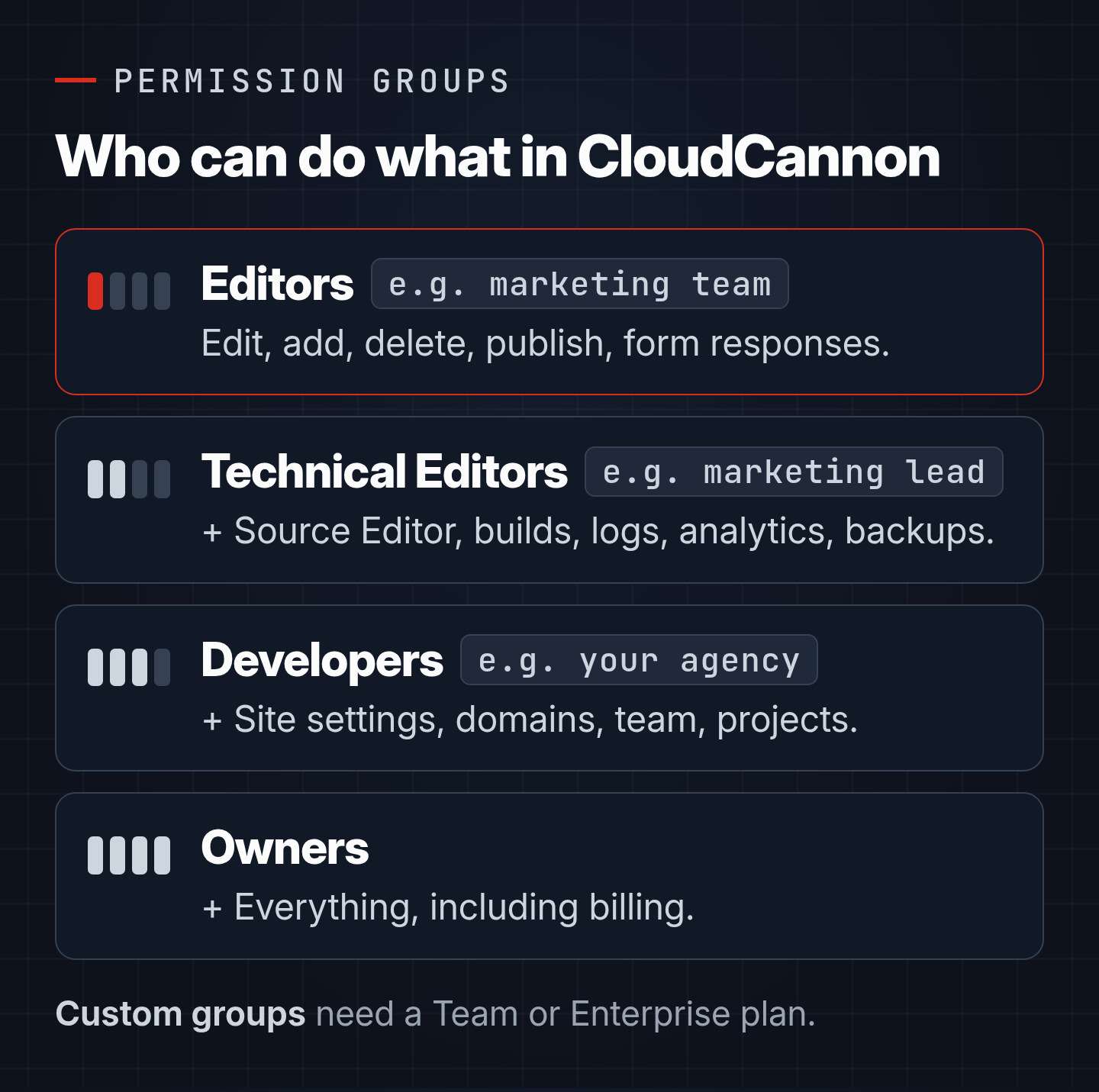
A typical setup: your marketing team as Editors, maybe your marketing lead as a Technical Editor, and us as Developers. On Team and Enterprise plans you can also create custom groups, for example letting someone draft content but not publish it.
What you can do yourself vs what still needs a developer
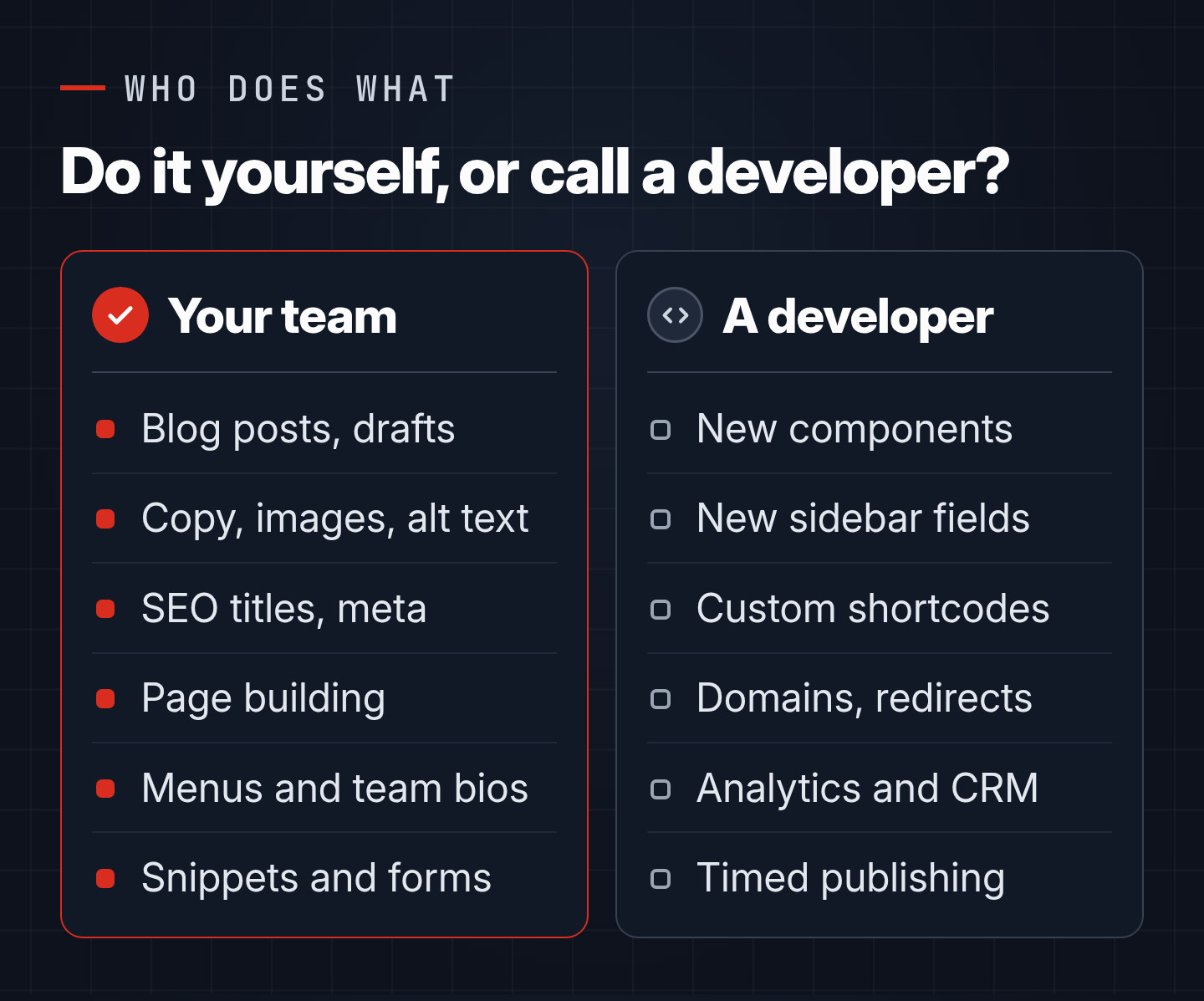
Your team can handle:
- Writing, editing and publishing blog posts (and getting them signed off first)
- Updating copy, images and alt text on any page
- Editing SEO titles and meta descriptions page by page
- Building and rearranging pages from the component library
- Updating navigation, team bios and other data files
- Dropping in video embeds, alerts and other snippets
- Managing form responses
Still a developer job:
- New component types or layouts. If the brick doesn’t exist yet, someone has to design and build it.
- New fields in the sidebar. If a setting isn’t already in the sidebar, adding it is a developer job.
- Custom shortcodes. These need a developer to set them up before your team can drop them in.
- Build settings, domains, redirects, structured data, CRM and analytics integrations.
- Timed publishing. Hugo supports a future
publishDate, but pages before that date aren’t rendered unless the build is told to include future content.3 Because a static site only changes when it rebuilds, “go live at 9am Monday” needs a scheduled rebuild set up by a developer. It’s easy to set up, but don’t assume it’s there by default.
Is that list a limitation? Sort of. It’s also the reason the site still looks and performs like the day it launched, two years and three marketing managers later.
“But WordPress lets me…” (the usual objections)
“WordPress has a plugin for everything.” It does. Every one of them is code to update, test and defend, forever. The flexibility is real, and so is the maintenance bill. We’d rather build the few things you actually need properly. Our take on the engineering of trust explains why.
“We’ll be locked in to you.” Your content lives as plain Markdown and YAML in your own Git repository, and CloudCannon is Git-backed rather than a walled garden.1 Hugo is open source. If you leave us, your content leaves with you. And our retainers are month-to-month anyway.
“Our team isn’t technical.” Good news: the Editors group exists precisely for people who don’t want to think about the technical bits. If you can use Google Docs, you’re qualified.
“What if I break something?” You’ve got undo, discard, a review step before saving and, if you set it up, an approval step before anything goes live. It’s genuinely harder to break than a WordPress site with 30 plugins and an overdue update.
Your first 10 minutes in CloudCannon
- Open your homepage in the Visual Editor and click a heading. Notice the yellow and green editable regions.
- Change a word, then hit Save and look at the change review.
- Open a blog post in the Content Editor and find the snippet button in the toolbar.
- Open the sidebar and update the SEO description on one page.
- Duplicate an existing post, mark it as a draft, and confirm it doesn’t appear on the live site.
- Ask your developer what permission group you’re in, so you know what you can and can’t do.
That’s it. Ten minutes and you’re running your own website again.
Want to see what your site would look like in CloudCannon?
If your current site makes simple edits feel like a support ticket, let’s fix that. We’ll review your website’s speed, structure and editing workflow and show you what a faster setup your team can actually run would look like, with no lock-in and no jargon.
References
- CloudCannon, the Git-backed CMS we use for editing.
CloudCannon - Bootstrap to a client-editable Hugo site: Client editing. (Editing, reordering and adding Bookshop components live in the Visual Editor)
CloudCannon Tutorials, Mike Neumegen - Hugo, the open-source static site generator. (Draft pages and future publish dates)
Hugo - CloudCannon plans.
CloudCannon
Disclaimer
The information provided in this blog is done on a best effort basis. No warranty and or guarantees are given or implied.